The Hidden Struggle of Converting Massive Video Files
We have all been there. You find an incredible two-hour presentation, a full-length concert, or a deeply detailed podcast online. You want to extract the audio so you can listen to it while walking the dog or driving to work. You open your web browser, head to video-to-mp3.com, and select your file.
Suddenly, everything grinds to a halt. The progress bar crawls like a snail because your original video file is a massive four-gigabyte monster. Even if you only want the sound track, uploading a giant file takes forever and eats up your entire home internet data limit.
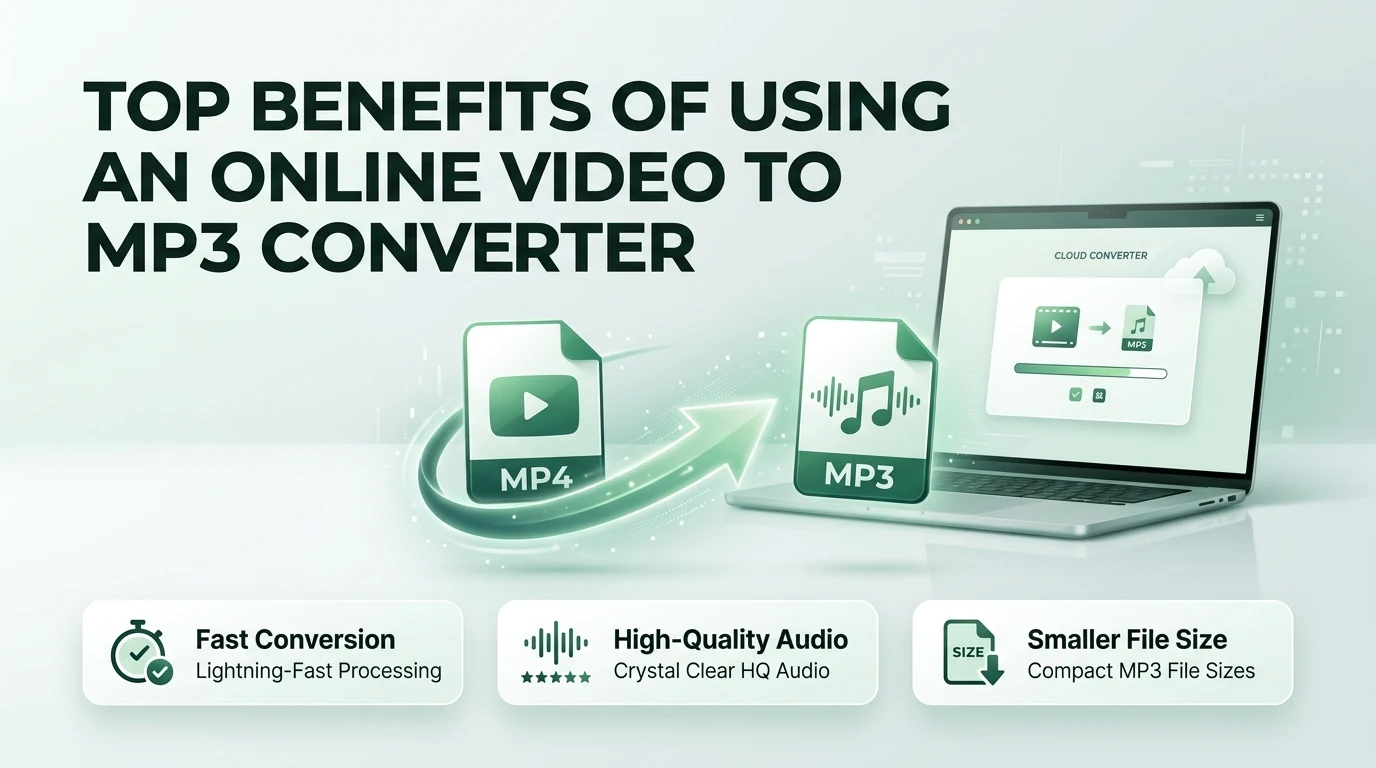
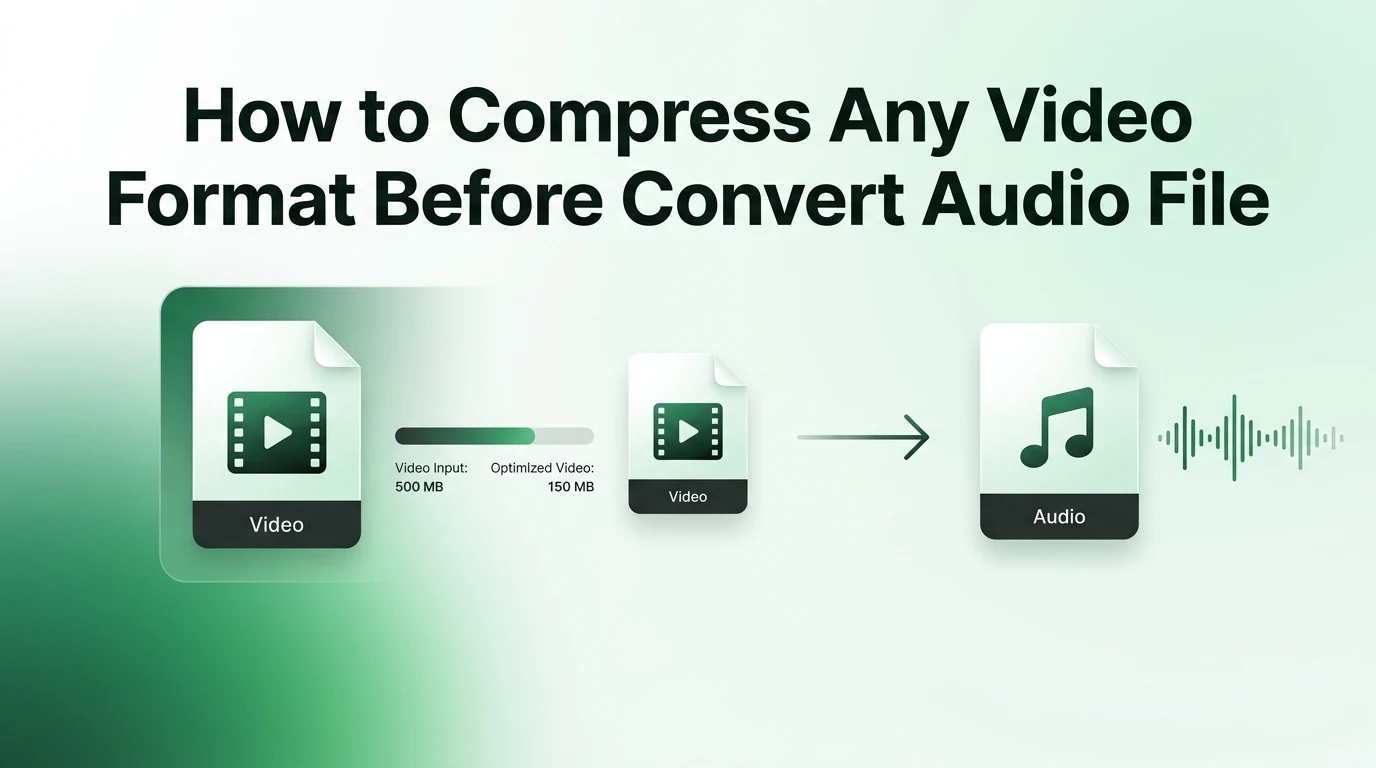
This is exactly why smart content creators use a specific trick before they ever touch an audio extractor. By using a reliable video compress strategy first, you can shrink down those heavy files into a lightweight package. This makes your final audio conversion lightning fast.
Let us dive into the easiest ways to shrink any video format, why this step saves you so much time, and how to keep your sound pristine throughout the entire process.
Why Shringing Your Videos Makes Total Sense
When you look at a heavy video file on your computer, the audio portion is not what takes up all that space. The true culprits are the millions of high-definition visual pixels packed into every single frame. If you try to upload a raw, unedited recording straight from a modern smartphone, you are forcing your internet browser to process a ton of visual information that you plan to throw away anyway.
If you apply a quick compression pass first, you trim away the excess visual fat. A dedicated tool will lower the video resolution and clean up redundant image data while keeping the original sound track untouched.
To help you see how much data you can save, take a look at how a typical video shrinks when you run it through a modern processing engine.
| Video File Type | Original File Size | Compressed Size | Upload Time Impact |
|---|---|---|---|
| Ultra HD Movie (.MKV) | 4.5 GB | 350 MB | 90% Faster Upload |
| Long Webinar (.MP4) | 1.2 GB | 110 MB | 85% Faster Upload |
| Smartphone Vlog (.MOV) | 850 MB | 75 MB | 91% Faster Upload |
| Legacy TV Show (.AVI) | 700 MB | 95 MB | 86% Faster Upload |
By taking a brief moment to shrink the visual data, you make the subsequent audio extraction step incredibly smooth and efficient.
The Secret Science Behind Video Shrinking
You might be wondering how a piece of software can make a file so much smaller without destroying it completely. The magic lies within a specialized program called a video compressor, which uses smart mathematical algorithms to find and eliminate waste.
Most modern cameras record far more visual detail than the human eye can actually process during casual viewing. For example, if a video shows a speaker standing in front of a solid blue wall for an hour, the background does not change from frame to frame.
Instead of saving that blue wall millions of times, a smart compression engine saves it once and only updates the parts of the picture that move, like the speaker's face and hands. This process removes what engineers call spatial and temporal redundancy, shrinking the container box down to a fraction of its original size while protecting the underlying sound waves.
A Simple Step by Step Guide to Preparing Your Files
You do not need to be a professional film editor to shrink your media assets successfully. The entire process requires only a few intuitive actions on your part.
- Open your preferred web browser and locate a reputable online shrinking tool.
- Drag your heavy video document straight into the designated upload box on the screen.
- Select a web-friendly preset option to reduce the heavy visual data while maintaining standard audio parameters.
- Click the main action button to let the remote cloud servers process the document securely.
- Download the newly optimized video file directly to your local computer or phone hard drive.
Once you have your new, lightweight video file ready, you can head straight over to video-to-mp3.com to extract your clean music track in just a matter of seconds.
The Best Features of Modern Online Tools
In the past, managing media formats meant installing expensive, complicated desktop software that would slow your computer down to a crawl. Thankfully, modern cloud-based web applications have made those frustrating days a thing of the past.
- You do not have to risk downloading dangerous viruses or malware onto your personal family computer.
- The processing calculations occur entirely on distant remote servers, which protects your phone from overheating.
- Universal compatibility allows the system to work beautifully on Android devices, iPhones, Macs, and Windows PCs.
- Simplified user interfaces mean you never have to guess what confusing technical buttons or sliders mean.
- You save a massive amount of internal device storage space by keeping your local hard drive completely clean.
Essential Tips for Keeping Your Sound Crystal Clear
While shrinking your files is an incredible time-saver, you need to exercise a little bit of caution to protect your final listening experience. The most important rule to remember is to look closely at your compression settings before you hit the start button.
Make sure you do not accidentally lower the audio bitrate along with the video resolution. Look for an option that says "Keep Original Audio" or manually select a high sound setting like 192 kbps.
This ensures that while the heavy pictures get smaller and fuzzier, the music, voices, and dialogue stay beautifully sharp and clear for your headphones.
Frequently Asked Questions
1. Does shrinking a video file destroy the audio quality?
The audio quality will remain perfectly intact as long as you configure your tool correctly. Most modern shrinking programs allow you to compress the heavy visual elements aggressively while leaving the underlying audio track completely uncompressed and clean.
2. Why should I use a video compress tool before extracting an MP3?
Using a shrinking tool reduces the overall file size by removing heavy, unnecessary visual data. This makes uploading the file to video-to-mp3.com much faster, saving you a massive amount of time and protecting your monthly internet data usage limit.
3. Can I compress a video directly on my mobile smartphone?
Yes, you can easily use browser-based shrinking applications on any modern mobile device. The system processes the heavy files in the cloud, allowing you to optimize large camera clips without slowing down your phone's daily performance.
4. What is the best video format to use for quick processing?
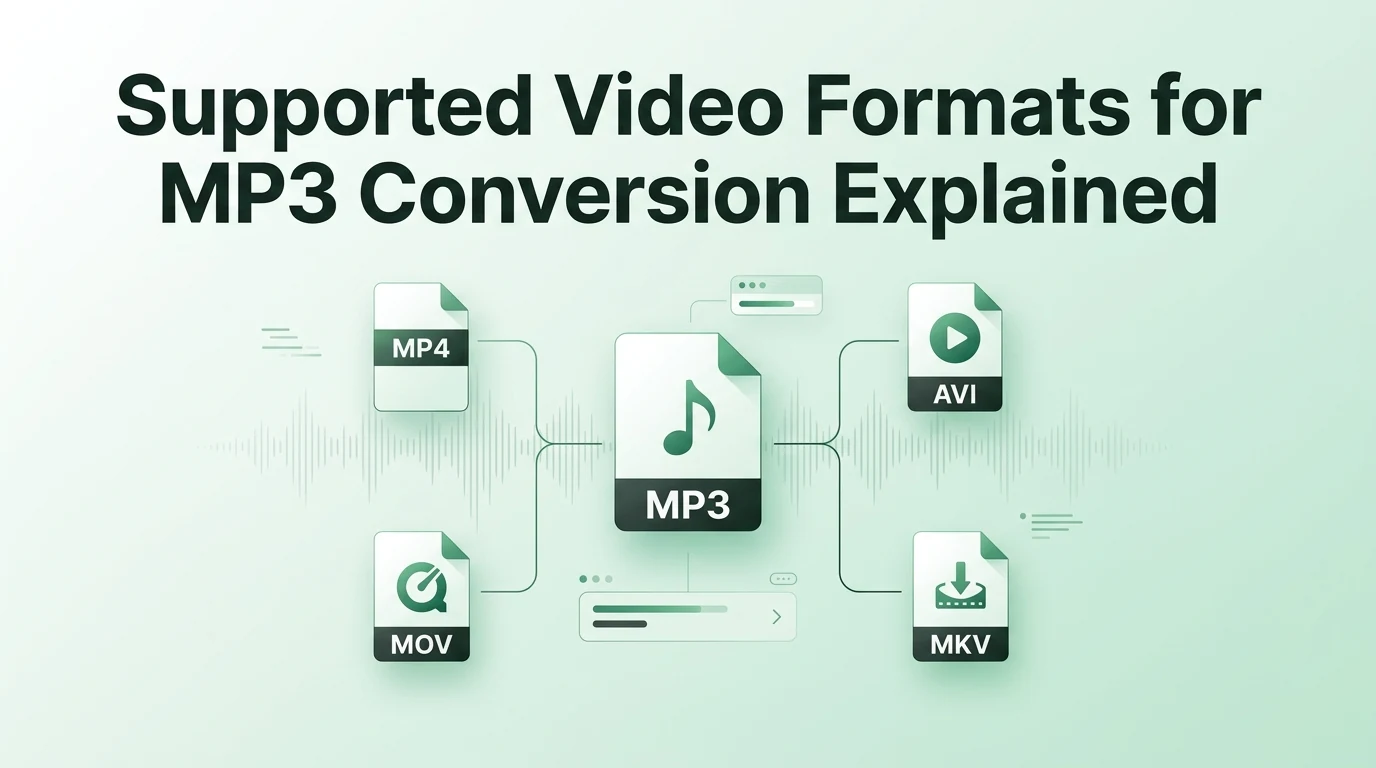
The MP4 format is the undisputed king of web media because it is highly efficient and globally supported. Converting older, bulky formats like AVI or MKV into a compressed MP4 file makes any future audio extraction tasks incredibly smooth.
5. Is it safe to upload my personal home videos to online tools?
Using a secure, trusted platform ensures your personal files are treated with total privacy. Reputable online utilities process your files automatically through automated server scripts and delete the data from their networks shortly after you finish downloading your results.
Final Thoughts on Smooth Media Management
Learning how to manage your file sizes is the ultimate secret to building a great personal media library. By taking a quick moment to run your heavy clips through a video shrinking process first, you eliminate the headaches of slow uploads and frozen browser tabs. You get to enjoy the exact same high-quality audio tracks without wasting your precious time or bandwidth. Once you see how easy it is to trim away the useless visual data, the entire world of media conversion becomes a breeze. The next time you find a massive video clip with an audio track you love, remember to shrink the file down to size first, then head right over to video-to-mp3.com to finish your audio journey with ease.