Why Video Formats Seem Confusing Until Now
We have all been there. You find a great video online or record a wonderful memory on your phone. You want to save just the sound track so you can listen to it while walking or working. You open up a web browser, get ready to change it, and suddenly you hit a wall of strange letters. MP4, MOV, MKV, AVI, FLV. It feels like alphabet soup.
You might start worrying if your specific file will even work. Will the sound end up sounding broken? Will the website reject your file completely? The good news is that turning your videos into crisp audio tracks is much simpler than it looks from the outside.
A modern video to MP3 converter is designed to understand all of these weird format names for you. It acts like a universal translator, opening up the video file, ignoring the heavy picture data, and pulling out the clean audio track you actually want.
Let us break down exactly how these different video formats work, which ones you can use on video-to-mp3.com, and how to get perfect sound every single time.
What Happens When You Convert a Video
To understand why different video formats matter, it helps to know what a video file actually is. Think of a video file as a digital cardboard box. Inside that box, there are two separate things wrapped up together. One is the video track, which contains all the moving pictures and colors. The other is the audio track, which holds the speech, music, and sound effects.
When you use a quality extraction tool, you are not really changing the whole file into something else. Instead, you are opening that box, throwing away the heavy video track, and pulling out the audio.
The software then takes that raw audio and encodes it into a standard format that any phone or media player can open easily. This process drops the overall file size dramatically, freeing up a massive amount of room on your device storage.
The Most Common Video Formats Explained
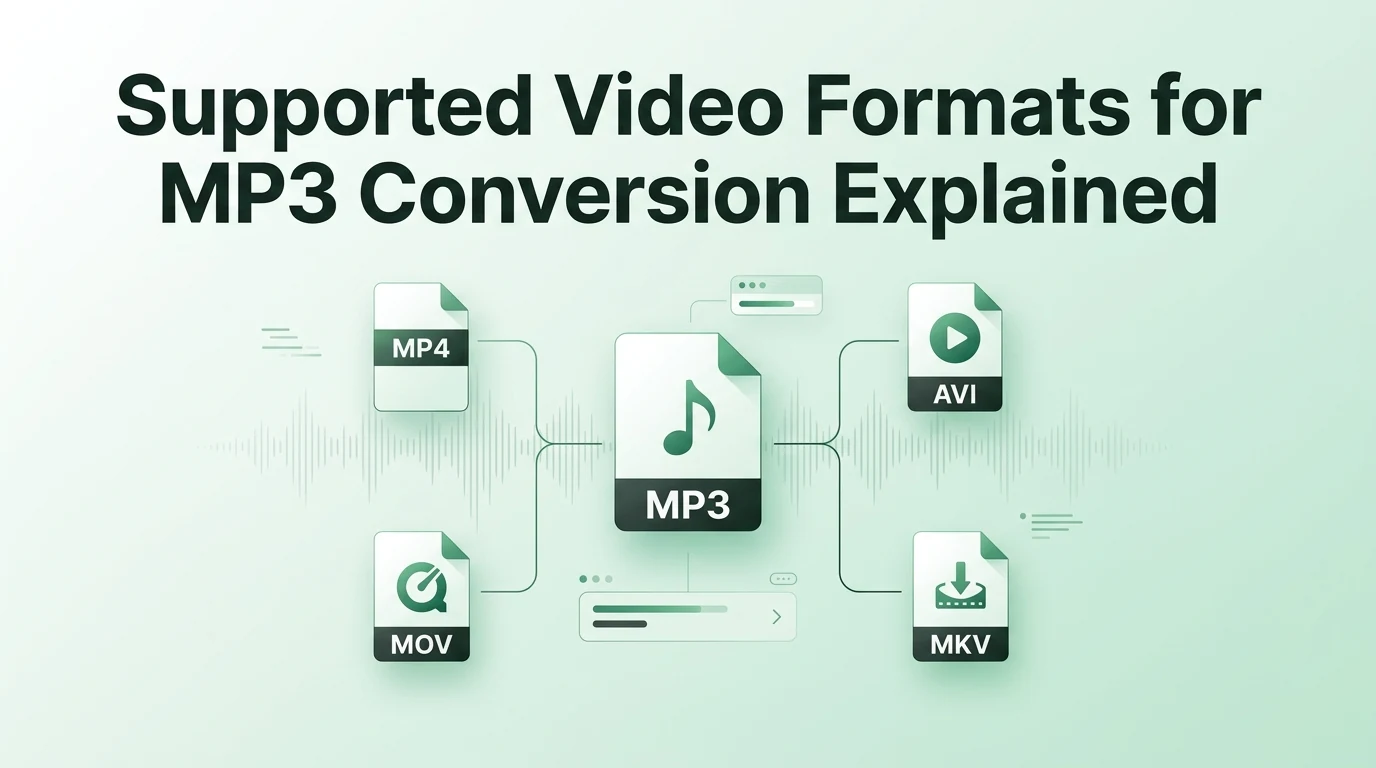
Every camera manufacturer and software company loves to use their own specific type of video box. Because of this, you will run into a handful of formats more often than others during your daily internet browsing.
The most popular format by far is the MP4 file. It is the unofficial king of web video because it keeps file sizes small while maintaining beautiful picture quality. Almost every smartphone, streaming platform, and digital camera saves footage in this format by default. It is the easiest format for any conversion tool to read because its internal audio track is already highly optimized.
If you use an Apple laptop or an iPhone, you will constantly see MOV files. This is Apple's signature video format, designed to work perfectly with their native media players. While MOV files are often much larger than MP4 files, they carry incredible, uncompressed audio tracks that sound stunningly deep when you pull them out.
Checking the Compatibility of Less Common Formats
Sometimes you will stumble upon older or more specialized video files. For example, AVI files were created by Microsoft decades ago. They are heavy and bulky, but they are still widely used for storing high-quality television episodes on older desktop computers.
On the other side of the spectrum, you might find MKV files. Movie enthusiasts love MKV files because they can hold multiple language tracks and subtitle files inside a single document.
No matter what kind of file extension you are dealing with, a modern web-based extraction platform can handle the heavy lifting without breaking a sweat. To see how these common video files match up when you prepare to extract their sound tracks, take a glance at this quick compatibility breakdown.
| Video Format Extension | Common Source Device | Audio Extraction Ease | Final Sound Quality Expectation |
|---|---|---|---|
| .MP4 | YouTube downloads, Android phones | Extremely Simple | Crisp and perfectly balanced |
| .MOV | iPhones, iPads, Mac computers | Very Simple | Rich depth with high detail |
| .AVI | Older desktop PCs, legacy movie rips | Simple | Standard clarity for voice and music |
| .MKV | HD movies, multi-language files | Simple | Excellent theater-like sound |
| .FLV | Older web applications, streaming clips | Simple | Moderate quality, best for speech |
As long as your source file plays correctly on your computer or phone, our system at video-to-mp3.com will be able to read it and pull out the music track safely.
Why Some Audio Files Still Need Extra Adjustments
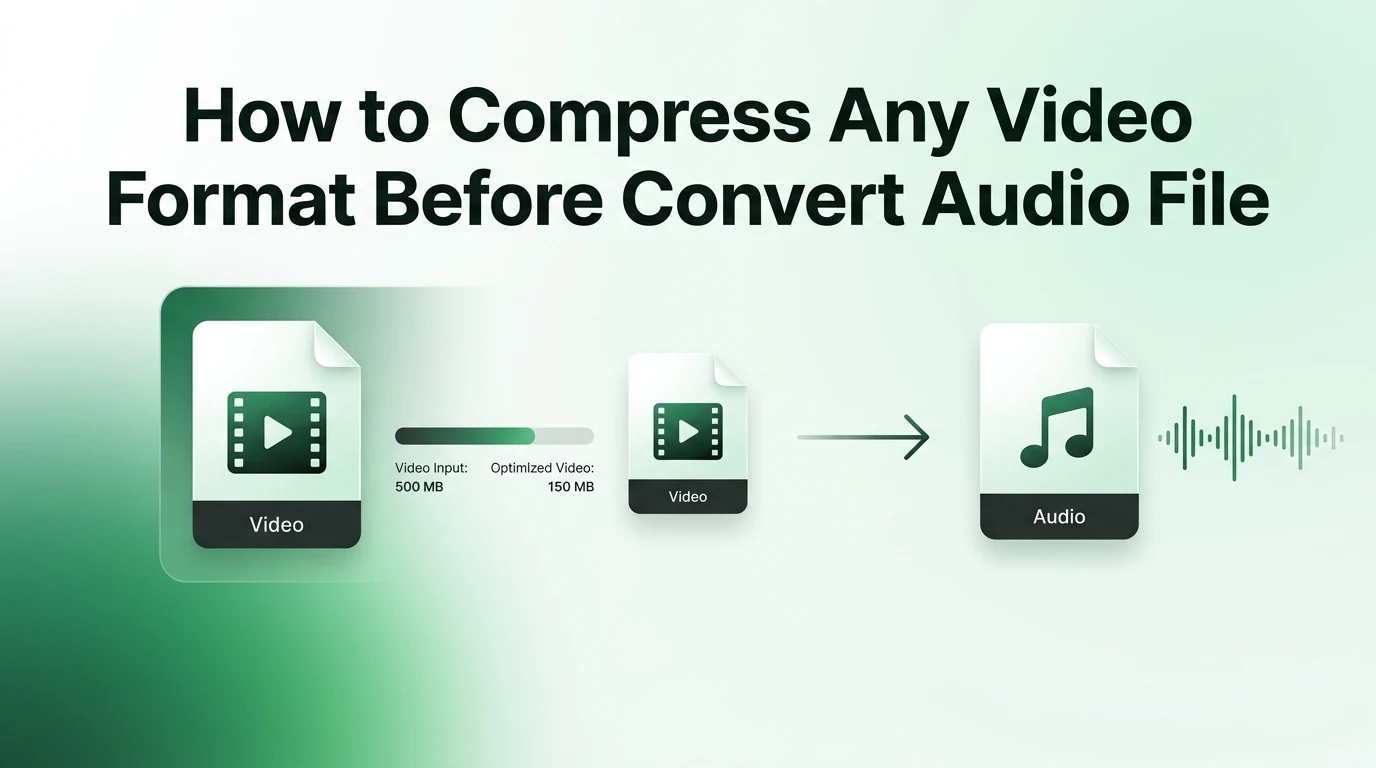
Once you extract your audio track, you might notice that the file size is still a bit larger than you wanted. This is especially true if you started with a massive high-definition movie file.
When you encounter this issue, you can use a secondary tool like an Mp3 Compressor to shrink the data down even further. This technology uses smart mathematical formulas to strip away subtle background frequencies that the human ear cannot easily detect anyway. It helps you shrink a massive file down to a tiny size that fits into an everyday email attachment or a quick text message to a friend.
Simple Step by Step Guide to Using the Converter
Now that you know your file format is fully supported, you can start converting with absolute confidence. The entire workflow takes less than a minute from start to finish.
- Open your web browser on any device and head straight to video-to-mp3.com.
- Click the upload button or simply drag your video file from your local folder into the target zone.
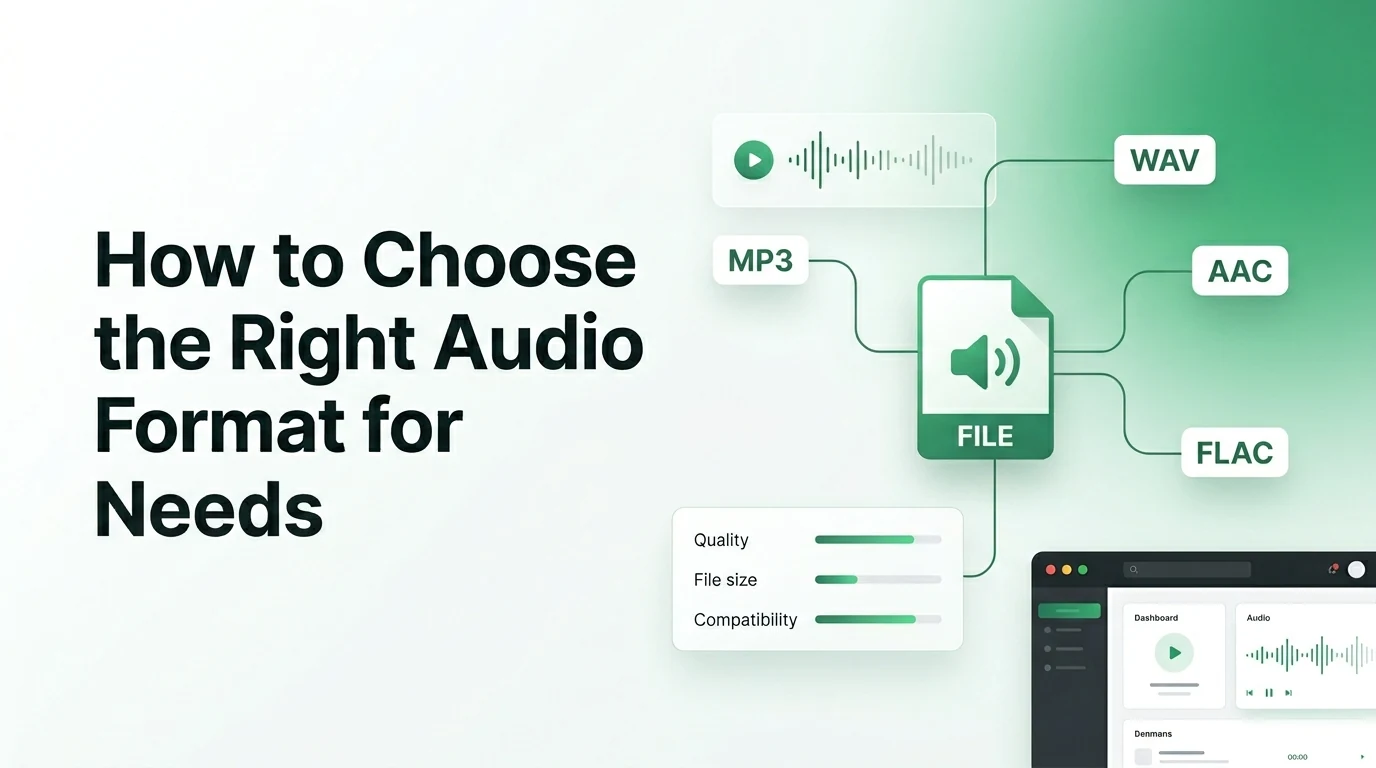
- Choose your preferred sound quality from the settings menu to match your specific listening needs.
- Hit the main action button to let the cloud server process your file safely.
- Wait a few seconds for the progress bar to finish, then click the download link to save your new audio file.
Key Benefits of Using a Cloud-Based Tool
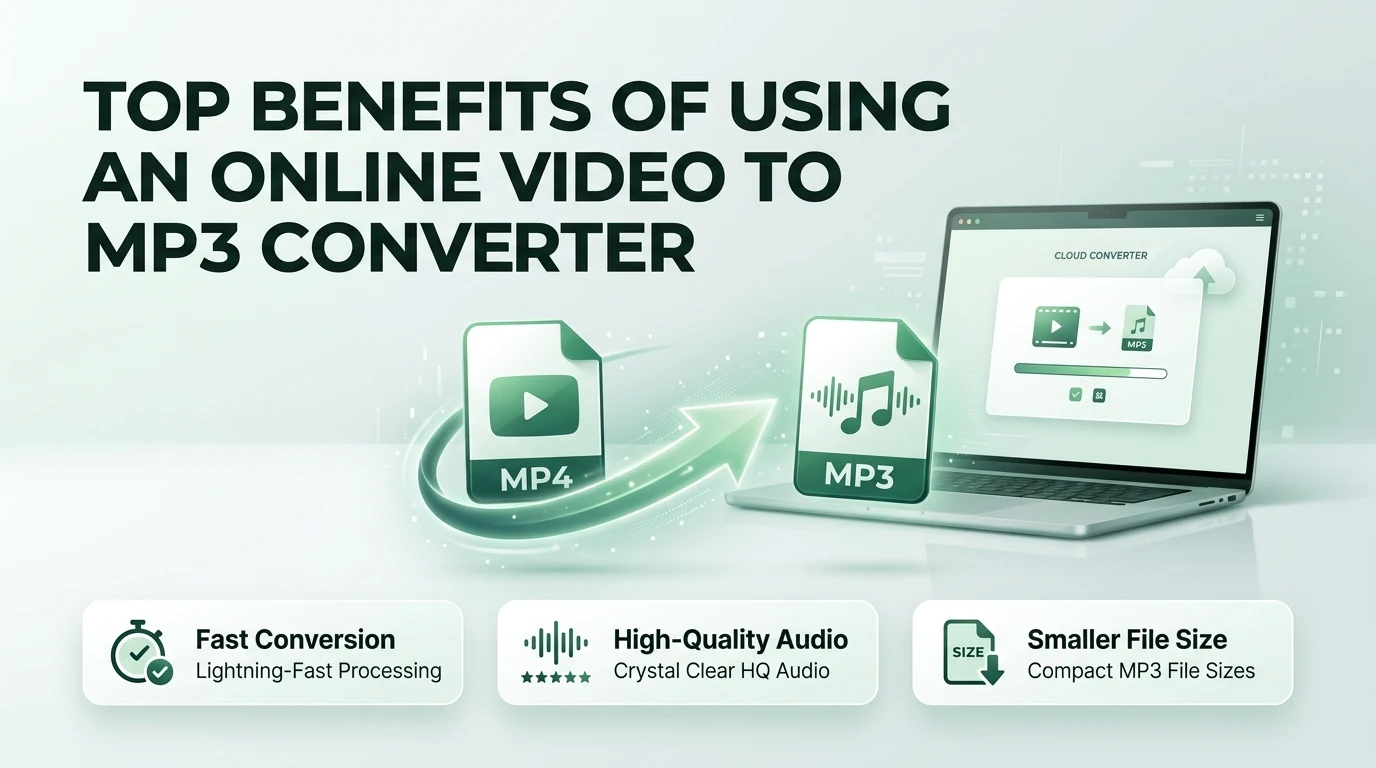
Using a modern online platform comes with a huge array of hidden benefits that make managing your media much more enjoyable. You do not have to live through the frustrations of old-school software installations anymore.
- You do not have to risk infecting your personal computer with malware or viruses from sketchy software downloads.
- The processing work happens on our remote cloud servers, keeping your smartphone cool and saving your battery.
- You can convert files from absolutely any device, including a school Chromebook or a public library computer.
- The clean and simple user interface ensures you never get confused by complex technical jargon or hidden settings buttons.
- You save a massive amount of hard drive space by keeping your local system free of heavy editing programs.
Tips for Getting the Highest Quality Sound Output
Always remember that a conversion tool cannot magically fix a bad recording. If the original video was filmed at a loud concert with heavy wind blowing directly into the microphone, the extracted audio file will have those same muddy sounds.
Whenever you have the choice, try to upload videos that feature clear, clean sound right from the beginning. Also, try to avoid converting an audio file multiple times. Every time you compress an audio track, you lose a tiny bit of the original clarity. Stick to converting directly from the original video file to ensure your music stays bright and beautiful.
Frequently Asked Questions
1. Can I convert a video file that I recorded on my own smartphone?
Yes, you can upload videos directly from your iPhone or Android camera roll. Our system reads standard mobile formats like MP4 and MOV perfectly, allowing you to turn your personal home videos into lightweight audio clips in just a few seconds.
2. Is there a limit to how large my video file can be?
Our web platform handles everyday video clips, music videos, and short presentations smoothly. If you have an exceptionally massive file like a full-length high-definition movie, the upload process might take a few extra minutes depending on your current home internet speed.
3. What happens to my original video file after the process finishes?
Your original video file stays completely safe and untouched on your computer or phone storage. The online converter simply reads a temporary copy of the data to extract the audio, meaning your original video will not be changed or deleted in any way.
4. Why does my phone say the file format is not supported before conversion?
Some mobile operating systems struggle to play heavy or rare desktop video formats like AVI or MKV out of the box. By running those troublesome files through video-to-mp3.com, you turn them into a standard MP3 audio file that every single phone can play instantly.
5. Can I extract audio from a video that has no sound track?
If you upload a silent video clip, the converter will complete the process but you will end up with an empty audio file that plays complete silence. The system requires a live audio track inside the original video box to create a usable sound document.
Wrapping Up Your Media Strategy
Understanding video formats does not have to feel like rocket science. Once you realize that formats like MP4, MOV, and AVI are just different digital boxes holding your favorite sound tracks, you can stop worrying about compatibility errors. A reliable online tool removes all the guesswork by opening those files automatically and delivering clean, lightweight music tracks straight to your device. By choosing the right settings and using a secure, browser-based platform, you can free up gigabytes of device storage while keeping your favorite content close at hand. Whenever you are ready to rescue an audio track from a bulky video file, head right over to video-to-mp3.com and let the system do the hard work for you.