The Ultimate Guide to Using a Video to MP3 Converter for Crystal Clear Audio
We have all been there. You are watching a fantastic video, and the background music hits you just right. Or maybe you are listening to a brilliant speech, a helpful tutorial, or a captivating interview, and you realize something important. You do not actually need to watch the screen. You just want to listen to the words while you walk, cook, or work.
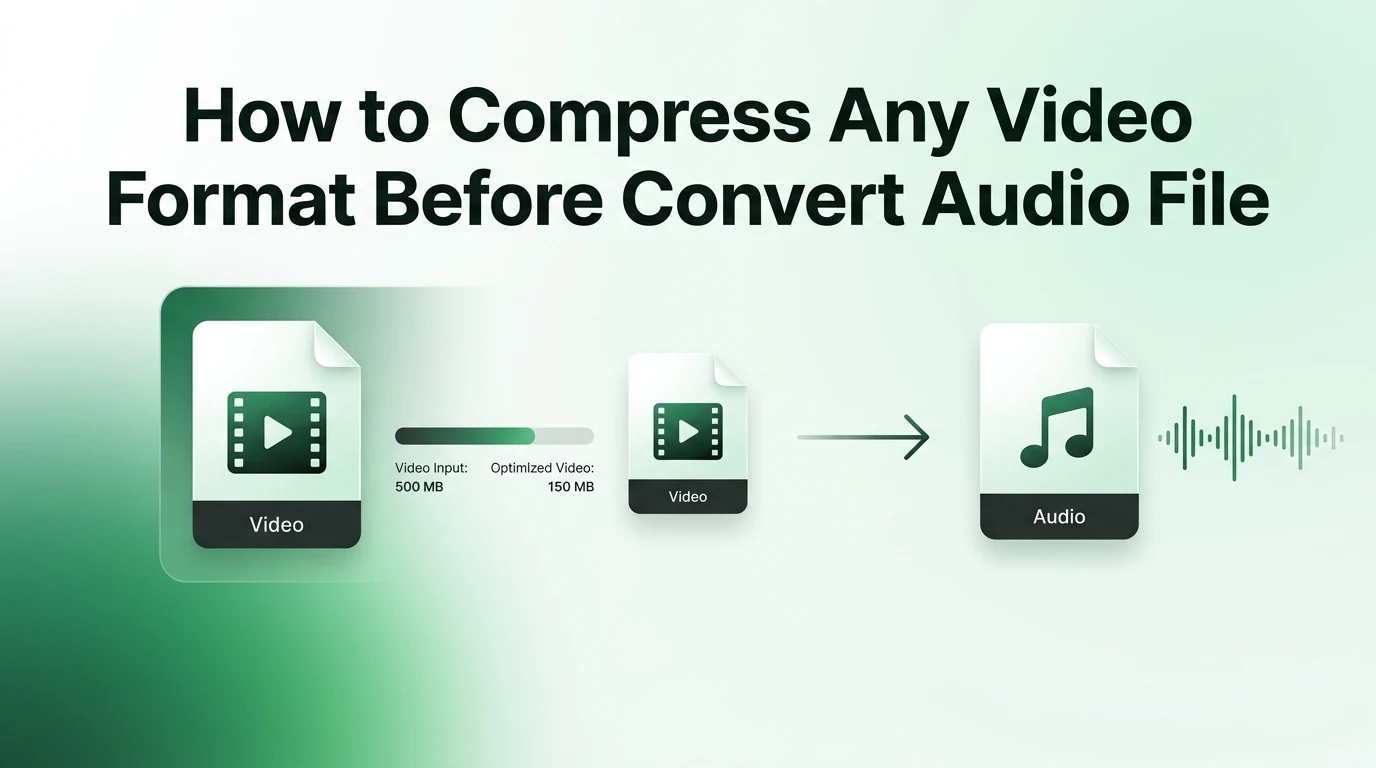
Keeping massive video files on your phone or laptop just to listen to the sound wastes a ton of storage space. That is exactly where a reliable video to MP3 converter saves the day. Turning those heavy videos into light, high-quality audio files is incredibly simple when you know the right steps.
Let us dive into the easiest ways to convert your files, the best tools to use, and how to get the cleanest sound possible without any tech stress.
Why Extracted Audio is a Total Game Changer
Think about your daily routine for a moment. If you love consuming content but find yourself constantly moving, video files are just not practical. They drain your battery quickly, prevent you from locking your phone screen, and take up gigabytes of precious storage space.
When you use a video to MP3 converter, you strip away the heavy visual data and keep the pure audio track. This leaves you with a compact file that plays smoothly on any device. Suddenly, that lengthy two-hour seminar transforms into a mobile podcast you can enjoy during your morning jog. It is all about making your favorite content fit seamlessly into your lifestyle.
Choosing the Best Audio Settings for Your Files
Before you hit that convert button, it helps to understand what happens behind the scenes. Not all audio files sound the same, and your settings make a massive difference.
The most important setting to watch is the bitrate. Bitrate determines how much data gets processed every second, which directly impacts how clear your music or speech will sound. If you choose a bitrate that is too low, your audio might sound muffled, like someone talking through a thick blanket.
To help you choose the best settings on video-to-mp3.com or your preferred software, take a look at how different bitrates affect your listening experience.
| Bitrate Level | Sound Quality Description | Best Use Case | File Size |
|---|---|---|---|
| 96 kbps | Low quality, highly compressed | Basic voice notes and speech | Extremely Small |
| 128 kbps | Standard quality, decent sound | Casual podcast listening | Medium |
| 192 kbps | High quality, crisp and clear | General music tracks | Large |
| 320 kbps | Maximum quality, rich depth | Professional audio and instruments | Very Large |
For the perfect balance between saving space and enjoying great sound, aiming for 192 kbps is usually the sweet spot for most casual listeners.
How to Convert Video to MP3 Online
If you want a quick solution without downloading bulky software, online tools are your best friend. Web-based converters allow you to upload a file directly from your web browser, process it on a cloud server, and download the finished audio track in seconds.
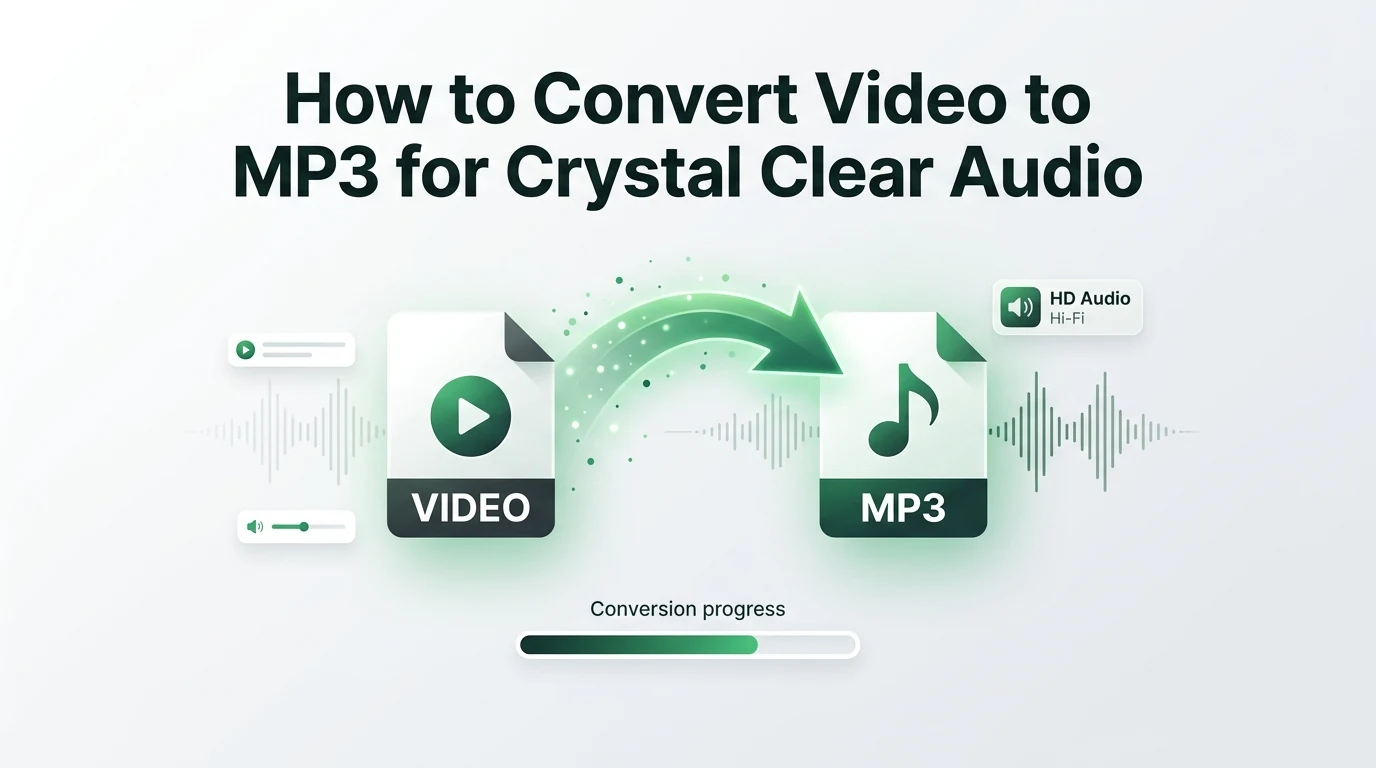
The process is incredibly straightforward. First, open your browser and navigate to a trusted online conversion platform. Next, click the upload area to select the video file from your computer or smartphone storage. Once the file loads, select MP3 as your desired output format from the dropdown menu. Finally, click the start button and wait for the progress bar to finish. As soon as the system processes the file, a download link appears, allowing you to save your new audio file instantly.
Desktop Software for Heavy Conversions
Online tools are perfect for quick, single tasks, but they can get slow if you have massive video files or a whole batch of clips to process. When you have a massive library of files to organize, desktop software provides a more stable and powerful alternative.
Programs like VLC Media Player or dedicated desktop converters handle the encoding directly on your computer chip, meaning you do not have to wait for slow internet uploads. This method gives you total control over advanced settings, like trimming out unwanted silence from the beginning of a clip or adjusting the overall volume levels before you finalize the file.
Essential Tips for the Cleanest Audio Quality
Getting a successful conversion is easy, but getting an amazing sounding track requires a little extra care. Always remember that a converter cannot magically fix a bad source. If the original video has muffled sound, wind noise, or low volume, the resulting audio file will have those same issues.
Try to look for videos that feature clean, clear sound from the start. Also, make sure to organize your files with clean titles and artist tags right after downloading them. Keeping your new audio library organized saves you from the headache of digging through dozens of randomly named files later on.
Frequently Asked Questions
1. What is a video to MP3 converter?
A video to MP3 converter is a specialized digital tool that extracts the sound track from a video file and saves it as a standalone audio file. This process strips away the visual images entirely, leaving you with a lightweight audio file that you can play on any phone, tablet, or music player.
2. Will converting a video lower the sound quality?
The final quality depends entirely on the settings you choose during the conversion process. If you select a high bitrate like 192 kbps or 320 kbps, the tool preserves the original depth of the audio. Choosing a very low bitrate will compress the file too much, making the sound muddy.
3. Do I need to pay for software to convert my files?
You do not need to spend any money because there are plenty of excellent free options available. Web-based tools allow you to convert files directly in your browser without spending a dime, while free open-source programs handle larger files on your computer smoothly.
4. Can I convert multiple videos at the same time?
Many advanced desktop applications and premium online tools offer a helpful feature called batch conversion. This option allows you to queue up an entire folder of videos, click a single button, and let the software convert every single file automatically while you step away.
5. What video formats can I turn into audio files?
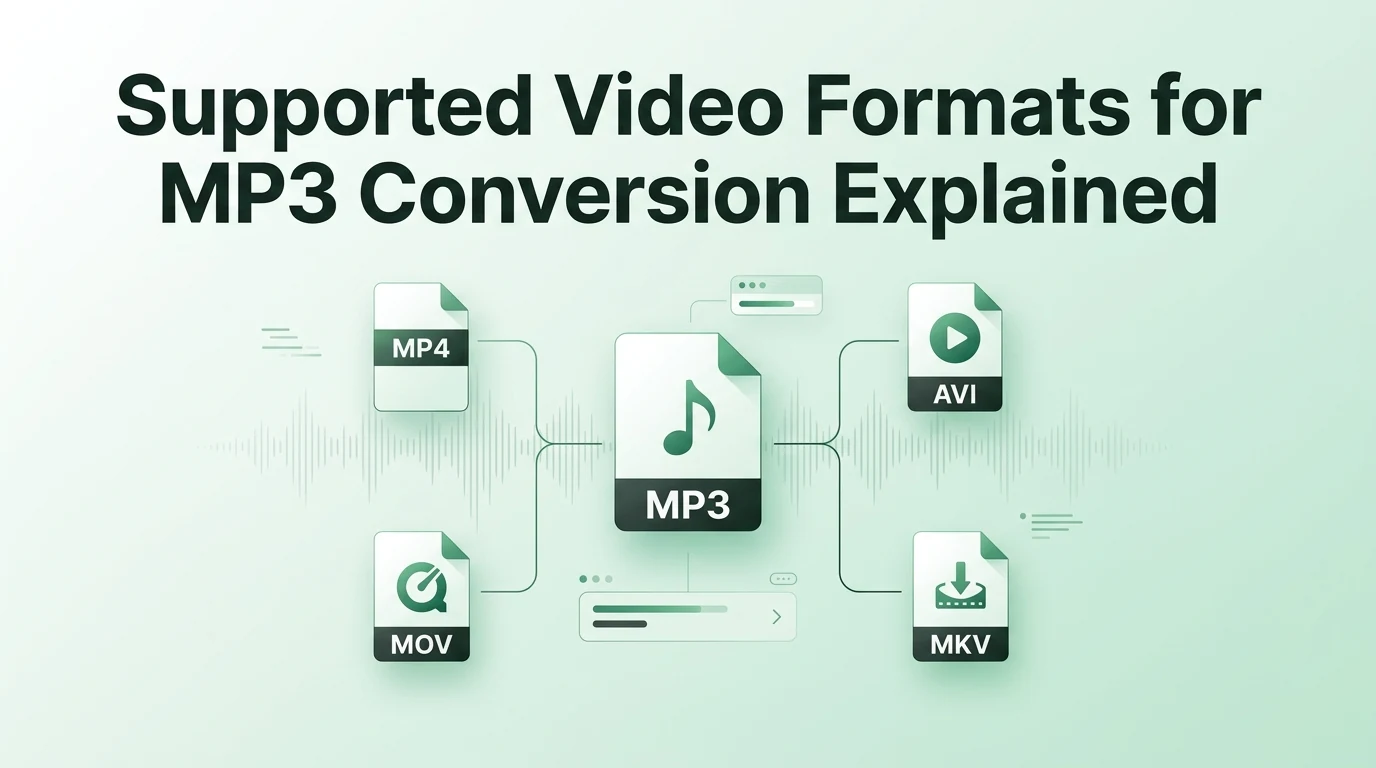
Most modern conversion tools are highly flexible and accept a wide variety of video formats. You can easily upload common files like MP4, MOV, AVI, and MKV, and the system will successfully extract the audio track into a standard MP3 file without any compatibility issues.
Final Thoughts on Audio Conversion
Transforming heavy video files into neat, portable audio tracks is a fantastic way to save space and enjoy your favorite content on the move. Whether you choose a quick online tool for an occasional file or install software for heavy-duty projects, the process takes just a few clicks. Just remember to select a good bitrate so your music and podcasts stay beautifully clear. Now that you know exactly how it works, you can head over to video-to-mp3.com, upload your first video, and start building your ultimate offline audio collection today.